
Blog

Search in Salesforce – to find what you need

December 30, 2011 - 10:42 am by Ryan

Today we released a couple great new enhancements that we’ve been very excited to unveil. Quite a few people have been asking for this for weeks and we’re happy to deliver. Until now users could log emails to open Opportunities and Cases that were related to the contact in the email. This has been the most popular feature in the app by a wide margin and it’s worked great. But of course, your jobs are more complicated than that and you need a way to relate emails to other people and also Opportunities or Cases that may not be directly related to that person.

Search and Find Other Contacts

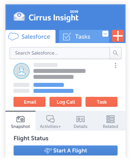
Now you can search for another person in salesforce from within Cirrus Insight and relate emails to that person even if they’re not on the original email. There’s a new search icon displayed to the right of a person’s name in the Cirrus Insight sidebar. When you click that you’ll be able to search for another Lead or Contact in Salesforce and then choose the right one from the list.

Once you’ve selected the new person, we display their profile from Salesforce in the sidebar just as you would see any other person. We’ll also display their open Activities, Activity History, Open Opportunities and Open Cases.

If you work with sales partners or support partners, this is probably something you’ve been looking for for a while. As a new email comes in, you want to relate that email back to the partner that you’re working with on that particular ticket or deal.


Search for Any Opportunity or Case

Conversations with your customers don’t stop when a Case closes or an Opportunity is won. It’s important to be able to enhance the customer context as conversations continue and now you can do that right from Gmail.

When you click the “Add to Salesforce” button next to an email you want to log, we show you the familiar Add to Salesforce dialog – with a twist.

Even if you don’t have any open Opportunities or Cases, you’ll see this dialog where you can change the subject line that will be saved to Salesforce – and you can search for any Opportunity or Case.

Opportunity search results

Case search results

And of course, when you choose an Opportunity or Case from the search results, the email will be logged in to Salesforce, related to both the chosen Opportunity or Case and the Lead or Contact record displayed in the sidebar.


Last updated by at .

  • http://twitter.com/OtaboInc Otabo

    Great stuff! Keep the updates coming.

  • http://twitter.com/adb1146 Andrew Bartels

    This is tremendous new functionality. WOW. Keep up the good work.

  • Robm

    Thanks – could this be extended to account search as well, we have multiple locations for accounts with the same business name.They are all delivery stations.

    • Anonymous

      Hi Rob. That’s up next. :)

  • Wpoveromo

    Awesome. Thanks!

Updated by on

Install Cirrus Insight for Firefox

Ready

Click to install, then Allow and Install.

Install

Set

Sign in securely with Salesforce.

Sign In

Go!

Launch Gmail.

Launch Gmail
Starting a free 14-day trial is usually as easy as 1-2-3. However, if you have any trouble during the installation process, please let us know and we'll help you get up and running asap.

Install Cirrus Insight for Google Chrome

Ready

Click to install, then click Add.

Install

Set

Sign in securely with Salesforce.

Sign In

Go!

Launch Gmail.

Launch Gmail
Starting a free 14-day trial is usually as easy as 1-2-3. However, if you have any trouble during the installation process, please let us know and we'll help you get up and running asap.

Sorry!

Cirrus Insight does not currently support your browser. Today, we support Chrome and Firefox and we’re working on building support for other browsers. Let us know if you need any help.