Every day, sales reps lose hours toggling between Salesforce and Gmail such as copying data, logging meetings, and updating records manually.
Research shows that up to 64% of a sales rep’s time is spent on admin tasks like data entry instead of actually selling.
That inefficiency adds up fast. When your CRM and inbox don’t communicate, your team wastes valuable selling time and risks losing critical customer context.
Integrating Salesforce with Gmail solves that problem. It unites your CRM and inbox into one seamless workspace, giving you instant access to contact data, recent activity, and deal insights all without ever leaving Gmail.
In this guide, you’ll learn:
- Why Salesforce Gmail integration matters for productivity
The top integration methods (native and third-party) - Step-by-step setup instructions
- How Cirrus Insight takes this integration to the next level
How to Connect Salesforce with Gmail in 6 Easy Steps
Connecting Salesforce with Gmail shouldn’t feel like an IT project, and with today’s tools, it isn’t.
Whether you’re setting up Salesforce’s native Gmail integration or choosing a more advanced solution like Cirrus Insight, following a clear process ensures everything syncs correctly from day one.
Before You Start
Make sure you have:
- A Salesforce account with admin or integration permissions
- A Gmail (Google Workspace) account
- Google Chrome browser for best compatibility
- (Optional) Cirrus Insight, if you want real-time email + calendar sync, AI Meeting Prep, and automated Salesforce logging
Step 1: Install the Salesforce Chrome Extension
- Visit the Chrome Web Store.
- Search for “Salesforce Gmail Integration.”
- Click “Add to Chrome” and confirm installation.
- Open Gmail and ensure the Salesforce sidebar icon appears.
Pro tip: If your organization uses Outlook or multiple inboxes, consider Cirrus Insight, it supports both Gmail and Outlook, syncing 100% of your data automatically across accounts.
Step 2: Enable Gmail Integration in Salesforce
- Log in to your Salesforce account.
- Go to Setup → Gmail Integration and Sync.
- Toggle on “Enable Gmail Integration.”
- Enable Enhanced Email for richer logging and tracking.
Pro tip: Enabling “Enhanced Email” makes your emails appear as full Salesforce records, improving reportability and automation.
Step 3: Configure Sync Settings and Permissions
- Navigate to Setup → Profiles or Permission Sets.
- Assign the following permissions:
- “Access Lightning for Gmail”
- “Email to Salesforce” (if manual logging is used)
- Set sync rules for:
- Which emails to log (by domain, record type, or status)
-
- Which calendar events sync automatically
(Optional) Define field mappings for custom objects if you’re using Cirrus Insight or other advanced tools.
Warning: Default Salesforce Gmail sync doesn’t support custom objects or multi-mailbox setups. Cirrus Insight does — and logs to Opportunities, Accounts, and even custom fields automatically.
Step 4: Connect Gmail and Salesforce
- Open Gmail in Chrome.
- Click the Salesforce icon in the sidebar.
- Log in with your Salesforce credentials.
- Authorize the connection when prompted.
- Once logged in, you should see related Salesforce data (contacts, leads, opportunities) alongside your emails.
Pro tip: Test by sending yourself an email, you should be able to view or log it directly to Salesforce without switching tabs.
Step 5: Test & Validate Your Integration
Run a quick functionality test to confirm everything’s syncing as expected:
- Open an email in Gmail → confirm Salesforce data appears in the sidebar.
- Log an email → verify it’s recorded correctly under the contact in Salesforce.
- Create a new event in Google Calendar → check if it appears in Salesforce.
If any data fails to sync, recheck permissions and make sure Gmail API access is enabled in Salesforce Setup.
Step 6: Train and Onboard Your Team
Once your integration is live, ensure your sales team knows how to use it effectively.
- Host a quick walkthrough on how to log emails and view records in Gmail.
- Provide short training videos or guides with screenshots.
- Set up automation rules to reduce manual steps (especially for follow-ups and task creation).
Pro tip: Cirrus Insight users can skip most of this, its AI-driven automation captures every interaction automatically, meaning less training and faster adoption.
Bonus: Troubleshooting Common Issues
If things don’t sync right away:
- Double-check OAuth permissions between Gmail and Salesforce.
- Ensure Einstein Activity Capture isn’t conflicting with your Gmail integration.
- For Cirrus Insight users, open the sidebar → “Sync Health” to identify and fix sync issues instantly.
Methods for Integrating Salesforce with Gmail
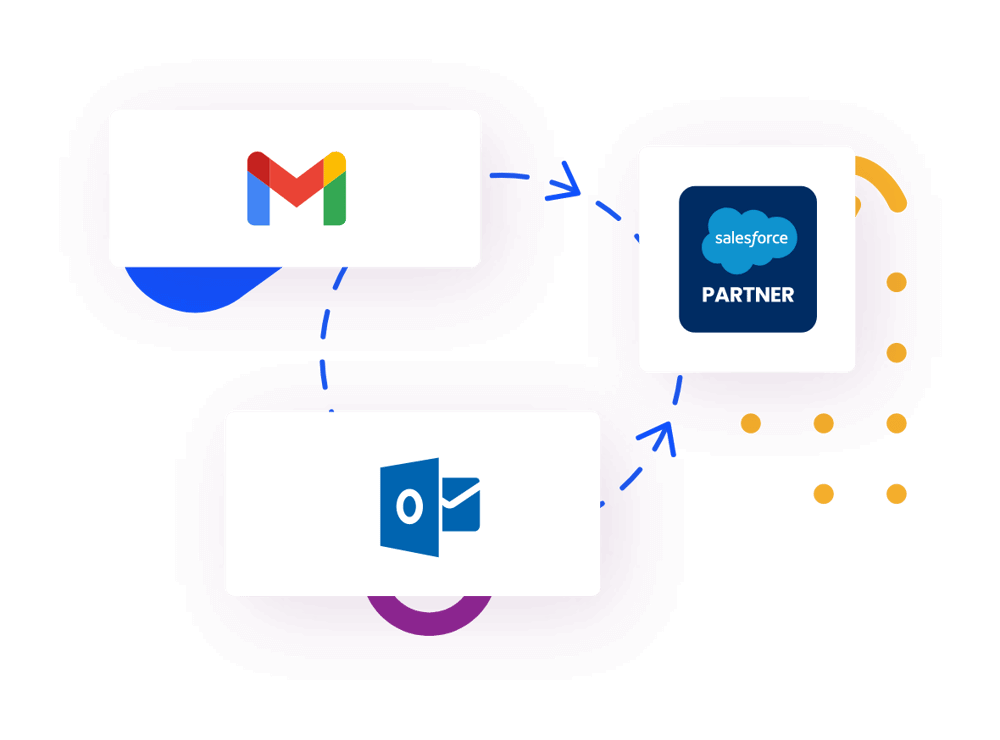
Several methods are available to integrate Salesforce with Gmail, each offering unique features and benefits.
1. Salesforce Gmail Integration (Salesforce Chrome Extension)
Overview: A native integration that allows users to access Salesforce data within Gmail.
Key Features:
-
View Salesforce records related to emails.
-
Log emails to Salesforce contacts, leads, or opportunities.
-
Create new Salesforce records directly from Gmail.
Setup Process:
-
Install the Salesforce Chrome Extension.
-
Enable Gmail Integration in Salesforce Setup.
-
Configure user permissions and settings.
Pros:
Cons:
-
Limited customization options.
-
Manual logging of emails may be required.
2. Salesforce Inbox
Overview: A solid solution offering advanced features for email productivity.
Key Features:
-
Email tracking and scheduling.
-
Automated logging of emails and calendar events.
-
Access to Salesforce templates and workflows within Gmail.
Setup Process:
-
Purchase Salesforce Inbox licenses.
-
Install the Salesforce Inbox extension for Gmail.
-
Configure settings and user permissions.
Pros:
-
Advanced email productivity tools.
-
Seamless integration with Salesforce workflows.
Cons:
-
Additional cost per user.
-
May require training for optimal use.

3. Einstein Activity Capture
Overview: An AI-powered tool that automatically captures emails and events, syncing them with Salesforce.
Key Features:
-
Automatic syncing of emails and calendar events.
-
AI-driven insights and analytics.
-
Reduced manual data entry.
Setup Process:
-
Enable Einstein Activity Capture in Salesforce Setup.
-
Connect Gmail accounts to Salesforce.
-
Configure data capture settings.
Pros:
-
Hands-off data capture.
-
Enhanced analytics and insights.
Cons:
-
Limited control over data capture.
-
Data stored outside of Salesforce may raise compliance concerns.
4. Third-Party Integration Tools
Overview: Solutions like Cirrus Insight offer comprehensive integration features beyond native options.
Key Features:
-
Customizable email and calendar syncing.
-
Advanced reporting and analytics.
-
Integration with additional tools and platforms.
Setup Process:
-
Choose a third-party integration tool (e.g., Cirrus Insight).
-
Install the corresponding Gmail extension.
-
Configure settings and permissions as needed.
Pros:
-
Robust feature set including email tracking, scheduling, templates, and task management
-
Full visibility and control over what data is synced and how
-
Seamless user experience within Outlook
-
Real-time sync with true Salesforce record integration
Cons:
-
May involve additional costs.
-
Requires evaluation to select the right tool.
Salesforce Gmail Integration Options Quick Comparison
|
Integration Method |
Cost |
Key features |
Best for |
|
Salesforce Gmail Integration (Chrome Extension) |
Free |
View and log emails to Salesforce, basic contact creation, and CRM visibility inside Gmail |
Individuals or small teams needing a simple integration setup |
|
Salesforce Inbox |
Paid (add-on) |
Email tracking, templates, and calendar event sync directly in Gmail |
Sales teams using Salesforce daily who want added email productivity |
|
Einstein Activity Capture |
Free (with Sales Cloud) |
AI-driven email and calendar sync, automatic data capture, and activity analytics |
Enterprises looking for automated CRM updates with minimal manual effort |
|
Cirrus Insight |
From $14/user/month |
Email and calendar sync, AI Meeting Prep, Buyer Signals, and real-time Salesforce activity tracking |
Salesforce-first teams that want advanced automation and full CRM visibility |

Benefits of Integrating Salesforce and Gmail
Integrating Salesforce with Gmail bridges the gap between email correspondence and customer relationship management (CRM), enabling teams to work more effectively and make informed decisions.
Streamlined Workflow and Increased Productivity
By integrating Salesforce with Gmail, users can access CRM data directly within their email interface. This seamless connection reduces the need to switch between applications, allowing for:
- Unified interface: View and manage Salesforce records without leaving Gmail.
- Contextual information: Gain immediate insights into customer interactions and history.
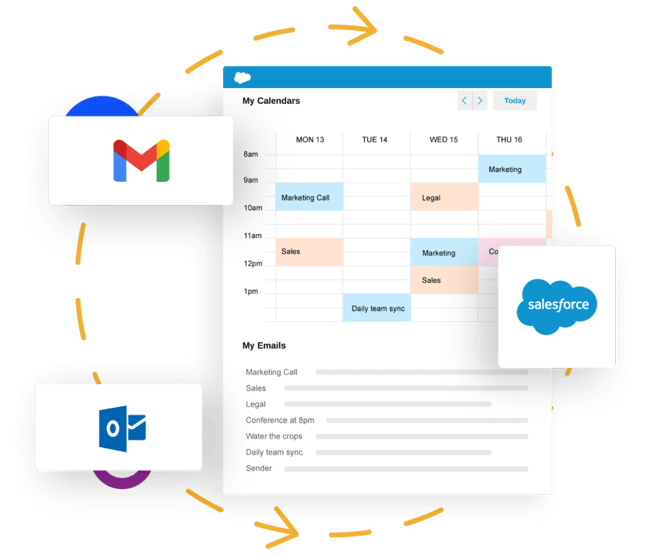
- Real-time synchronization: Ensure that updates in one platform reflect instantly in the other.
Enhanced Data Accuracy and Completeness
Manual data entry often leads to errors and inconsistencies. Integration ensures:
- Automatic data capture: Emails and calendar events are logged into Salesforce automatically.
- Comprehensive activity tracking: Maintain a complete record of customer interactions.
- Elimination of data silos: Ensure all team members have access to the same up-to-date information.
Improved Team Collaboration and Customer Service
With integrated systems:
- Shared visibility: Teams can see all communications related to a customer, fostering better collaboration.
- Consistent customer experiences: Ensure that every team member is informed, leading to more personalized service.
- Efficient issue resolution: Quickly address customer concerns with complete context at hand.
Data-Driven Decision Making
Combining email and CRM data enhances analytics and forecasting:
- Enhanced reporting: Generate comprehensive reports combining communication and sales data.
- Better forecasting: Use integrated data to predict sales trends and customer needs.
Maximizing the Benefits of Your Integration
To get the most value from your Salesforce Gmail integration, it’s essential to go beyond setup and focus on long-term success.
-
Define Clear Processes: Establish guidelines for logging emails and managing records.
-
Utilize Automation: Set up rules for automatic email and event logging.
-
Leverage Email Templates: Use Salesforce templates to maintain consistent communication.
-
Monitor and Maintain: Regularly review integration performance and address any issues promptly.
Overcoming Common Challenges
While the integration offers clear benefits, many organizations face roadblocks during and after deployment. Anticipating and addressing these challenges ensures smoother adoption and continued effectiveness.
Data Duplication:
-
Implement rules to prevent duplicate records when logging emails or creating new contacts.
User Adoption:
-
Provide comprehensive training and highlight the benefits to encourage usage.
Privacy Concerns:
-
Ensure compliance with data protection regulations by configuring privacy settings appropriately.
Technical Issues:
-
Maintain regular updates of the integration tools and monitor for any synchronization errors.
Cirrus Insight vs. Salesforce’s Native Integration Tools
|
Feature area |
Salesforce native options (Inbox / Einstein Activity Capture) |
Cirrus Insight |
|
Email & Calendar Sync |
Basic email logging and limited calendar sync; some delays with shared calendars |
Real-time, two-way sync across Gmail, Outlook, and Salesforce, including recurring and shared events |
|
Data Control & Customization |
Limited user control; AI determines what gets logged |
Full control over what data syncs and how it’s logged, with customizable workflows |
|
Meeting Intelligence |
No pre-meeting insights or summaries |
AI Meeting Prep delivers attendee and account insights before every call |
|
Conversation Capture |
Email logging only; no voice or call intelligence |
Meeting Transcription & Conversational Intelligence captures, summarizes, and scores every call |
|
Automation Scope |
Primarily auto-logging of activities |
End-to-end AI automation: scheduling, follow-ups, proposal generation, and CRM hygiene |
|
Salesforce Integration Depth |
Works with standard objects only |
Supports custom objects, record types, and advanced field mappings |
|
User Experience |
Separate browser add-on or sidebar |
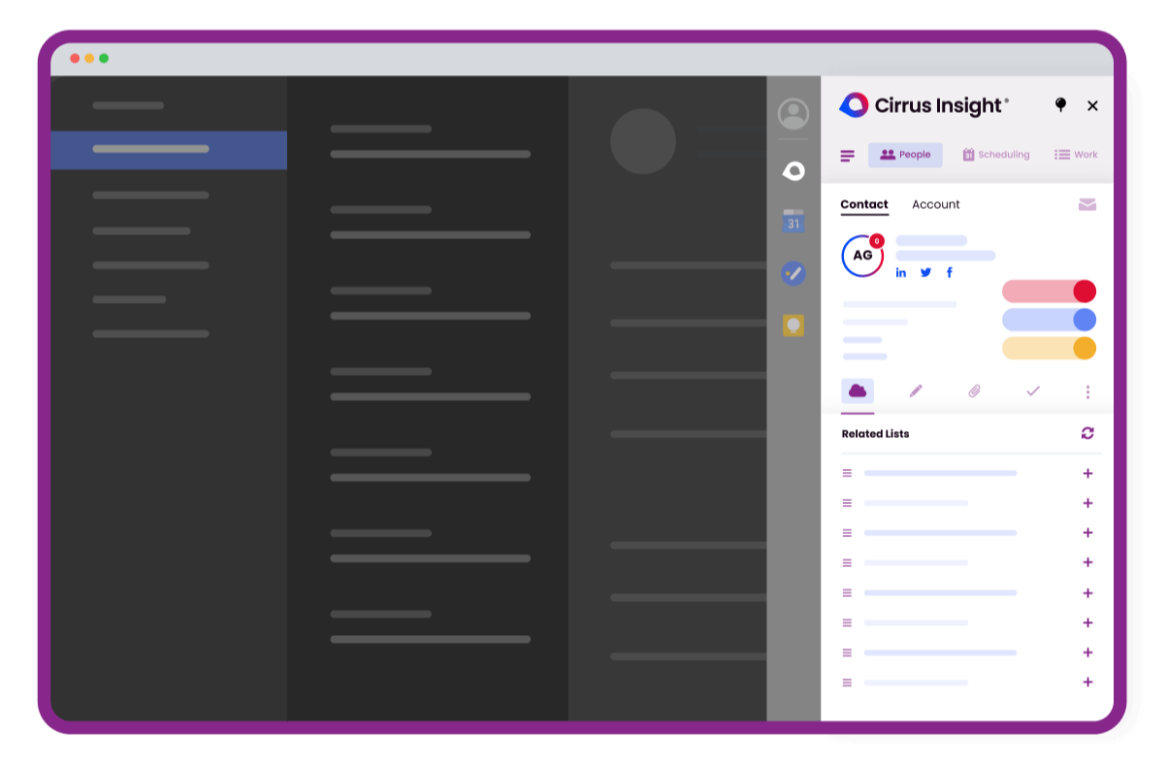
Fully integrated sidebar inside Gmail or Outlook, native Salesforce feel |
|
Pricing |
Free or paid add-on (depending on tier) |
Starts at $14–$21 per user/month, includes full AI feature suite |
How Cirrus Insight Enhances Salesforce-Gmail Integration
Integrating Salesforce with Gmail isn’t just about syncing systems, it’s about building a smarter, more connected sales workflow. When your inbox, calendar, and CRM work in harmony, your team stops wasting time on admin and starts focusing on what truly drives revenue: meaningful customer interactions.
And while Salesforce offers solid native integrations, Cirrus Insight takes things to the next level with a complete AI-driven sales platform built around productivity, intelligence, and automation.
Here’s what makes it stand out:
- Conversational Intelligence & Meeting Transcription: Captures and summarizes every customer conversation, highlighting key takeaways that keep your pipeline moving
- Live Meeting Coach: Acts as a real-time sales mentor, prompting reps with next-best questions or objection-handling tips during live calls
- Next Steps AI: Reviews active deals and recommends smart follow-up actions, like sending recaps, scheduling next meetings, or updating CRM fields
- Proposal AI: Drafts personalized proposals and pricing in seconds using real-time Salesforce data
- CRM AI: Keeps your Salesforce records clean and updated, automatically adjusting close dates, contact roles, and tasks so reps can focus on selling
- AI Meeting Prep: Automate prospect and customer research with Meeting AI. Bring in data from Salesforce to increase the power of the integration
Why it stands out: Cirrus Insight brings every piece of the sales motion from meeting prep to post-call follow-up, into one AI-powered workflow. It doesn’t just automate; it actively guides reps to sell smarter.
Ideal for: Sales teams that want a unified AI assistant for scheduling, coaching, and CRM automation, all embedded directly within Salesforce
Compared to Salesforce Inbox and Einstein Activity Capture, Cirrus Insight provides more flexibility, more powerful features, and enhanced user control, making it a superior choice for businesses seeking a comprehensive integration solution.
Future Trends in CRM and Email Integration
As technology evolves, so does the potential of Salesforce Gmail integration. Modern businesses demand smarter, faster, and more personalized communication—and integration tools are rising to meet that need. Here are key trends shaping the future of CRM and email integration:
-
Artificial Intelligence: AI will play a significant role in automating tasks and providing predictive insights.
-
Deeper Tool Integration: Expect more seamless connections between various business tools and platforms.
-
Advanced Analytics: Improved data analysis tools will offer more actionable insights for decision-making.
Staying abreast of these trends will ensure that your business remains competitive and continues to benefit from the latest advancements in technology.