.png?width=18&height=18&name=Vector%20(5).png)

Fix Microsoft Graph API Errors in Cirrus Insight Outlook Sidebar
Overview
Users may see one of the following messages in the Cirrus Insight sidebar in Outlook:
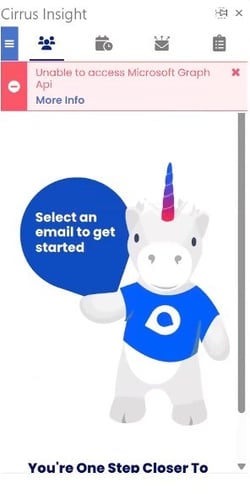
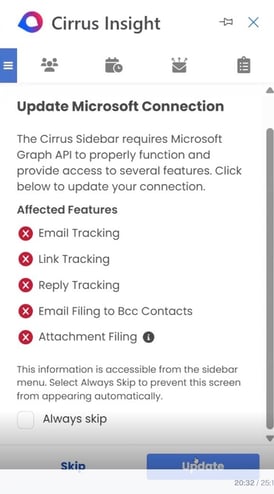
- “Unable to access Microsoft Graph API”
- “Update Microsoft Connection”
Cause: An outdated Cirrus Insight Outlook add-in that no longer supports current Microsoft Graph API requirements.
Resolution: Fully remove the existing add-in, install the latest version from the Microsoft 365 App Store, and complete admin consent (if applicable).
Affected Cirrus Insight Environments
- Outlook Sidebar (Desktop)
- Office 365 Web Application (Web Version of Outlook)
Step 1: Check Your Current Version
- Open Outlook and load the Cirrus Insight sidebar
- Right-click anywhere inside the Cirrus Insight sidebar
- Select Inspect
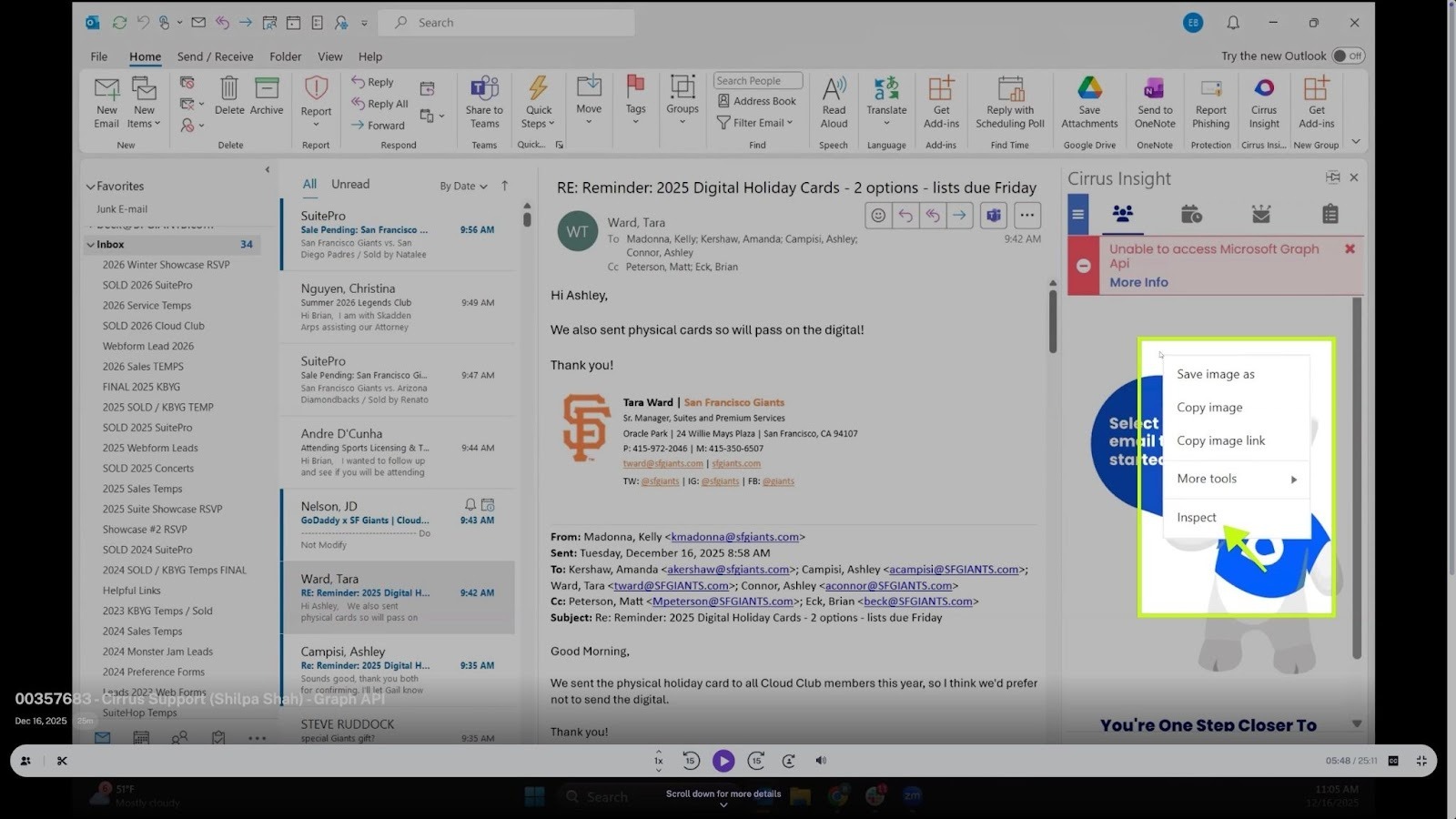
- In DevTools, locate: manifestVersion=YYYY.MM.DD
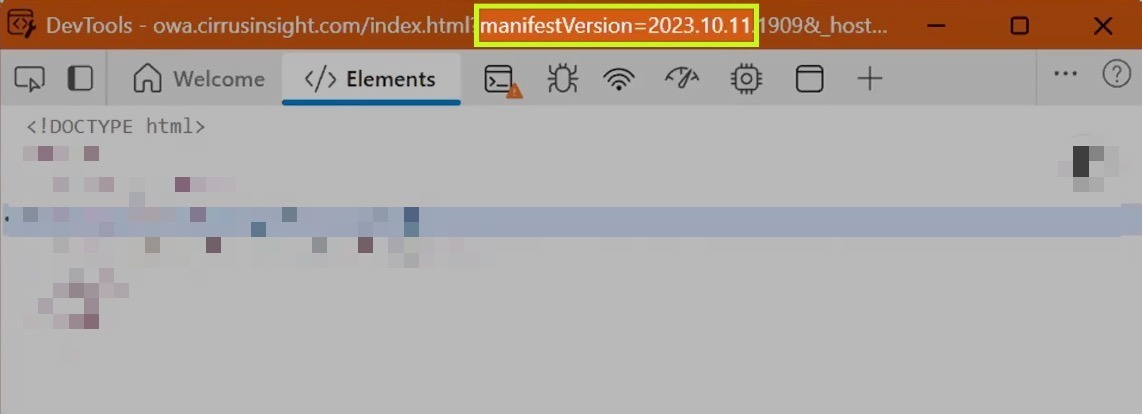
Result:
- Manifest Version prior to 2025 (e.g., 2023.10.11) → update required, as shown in the above example
- Manifest Version 2025.6.10 or newer → no update required, restart Outlook, and the Cirrus sidebar will work as expected
Step 2: Reinstall the Add-in
Individual Install
- Open Outlook
- Go to Get Add-ins / Manage Add-ins
- Remove Cirrus Insight
- Reinstall from the Microsoft 365 App Store
Admin-Managed Install
If the add-in cannot be removed, it is managed by an Office 365 admin.
Admin Steps
- Go to Microsoft 365 Admin Center
- Direct link: admin.cloud.microsoft/?#/Settings/AddIns
- Navigate to Integrated Apps -> Add-ins
- Locate Cirrus Insight
- Remove the existing add-in
- Deploy the latest version of Cirrus Insight
Step 3: Approve Microsoft Graph Permissions (Admin)
After reinstalling, admin consent is required.
- A new Enterprise Application will appear in Azure / Entra ID:
- Cirrus Insight for Outlook
Step 4: Allow Time for Deployment
For Admin deployments, Microsoft propagation may take up to 72 hours.
Recommended actions:
- Restart Outlook
- Relaunch Microsoft 365 apps
Additional Tip (Admin Check): Even after reinstalling the new sidebar, confirm with a Microsoft 365 administrator that the add-in is fully updated:
- Go to Microsoft 365 Admin Center
- Navigate to Integrated Apps > Add-ins
- Locate Cirrus Insight
- Check for an “Update” button
- If present, run the update directly from the admin view
Troubleshooting
- If unsure how to update, contact your Microsoft 365 Administrator
- If the issue persists after reinstall:
- Confirm the installed manifest version for Cirrus Insight
- Capture screenshots of the error
- Confirm admin consent was completed
- Escalate to Cirrus Insight Support
Relevant Articles