Reps burn a big chunk of the workday in their inbox, and most of what happens there never lands in Salesforce. We see the same pattern on almost every team we work with: emails, replies, and calendar invites pile up in Outlook while the CRM slowly drifts out of date. The gap shows up later as missed follow-ups and forecasts nobody trusts.
A Salesforce Outlook integration closes that gap. It connects the inbox and calendar your reps already live in with the CRM your managers report from, so activity flows between the two on its own.
This guide covers what the integration does, how to set it up, the real differences between Salesforce's native tools, where a third-party option like Cirrus Insight fits, and which path makes sense for your team.
|
Quick reference: the short version
- What it is. A connection that syncs emails, calendar events, and contacts between Outlook and Salesforce, and surfaces CRM records inside your inbox.
- The native path. The Salesforce Integration add-in (the Salesforce side panel) plus Einstein Activity Capture (automatic email and event sync). Both ship with most Sales Cloud editions.
- Legacy status. Salesforce for Outlook is retiring, with full product retirement scheduled for December 2027. Lightning Sync is being migrated to Einstein Activity Capture.
- The third-party path. Tools like Cirrus Insight add email tracking, templates, meeting scheduling, and attachment and custom-object sync on top of the basics, inside Outlook.
- Fastest setup. Turn on the Outlook Integration and Einstein Activity Capture in Salesforce Setup, then install the add-in from within Outlook.
|
What Is Salesforce Outlook Integration?
If your team lives in Outlook but manages relationships in Salesforce, switching between the two all day is where productivity leaks out. A Salesforce Outlook integration connects the two platforms so important customer interactions move between them automatically, instead of getting copied over by hand or lost entirely.
Depending on the method you choose, the integration lets you:
- Sync emails between Outlook and Salesforce
- Capture calendar events and meetings automatically
- Keep contacts consistent across both systems
- Open and edit Salesforce records without leaving your inbox
- Cut manual data entry and keep CRM records accurate
The goal is simple. Reps spend less time updating records and more time talking to customers.
How Does Salesforce Outlook Integration Work?
The integration connects your Outlook account to Salesforce using Microsoft's add-in framework and Salesforce's own sync tools. Once connected, information moves between the two on its own. A meeting booked in Outlook shows up on the related Salesforce record. An email thread with a prospect logs to the right contact or opportunity. Reps get a fuller picture of each account without updating two systems by hand.
Under the hood, two things are happening. The Outlook Integration add-in puts Salesforce inside the inbox, so reps can view and edit records while they read email. Einstein Activity Capture runs in the background, syncing emails and events so activity gets captured without anyone clicking log.
The Current State of Salesforce's Native Outlook Tools
Salesforce has changed its native lineup more than once, and outdated advice is everywhere. Here is where each tool actually stands so you do not set up something that is on its way out.
Outlook Integration add-in (current)
This is the modern side panel, formerly called Lightning for Outlook. It brings Salesforce records into Outlook on desktop, web, and mobile, and it is the tool Salesforce actively develops. It is available across Group, Professional, Enterprise, Performance, Unlimited, and Developer editions.
Einstein Activity Capture (current)
Einstein Activity Capture, or EAC, is the sync engine. It automatically captures emails and calendar events from Outlook and connects them to Salesforce records. It is the tool Salesforce points every new setup toward, and it pairs with the Outlook Integration add-in as the standard native combination.
Lightning Sync (migrating out)
Lightning Sync handled contact and event sync, but no email. Salesforce now provides a migration tool to move Lightning Sync users onto Einstein Activity Capture, so it is not the right foundation for a new rollout.
Salesforce for Outlook (retiring)
This is the old desktop plug-in, and it is on the way out. Full product retirement is scheduled for December 2027, extended from the original June 2024 date. The side-panel action menu already stopped working back in the Summer '21 release. If your team still runs Salesforce for Outlook, treat migration as a planning item, not an emergency, and move to the Outlook Integration plus Einstein Activity Capture. You can read the current status straight from Salesforce's retirement notice.
How to Set Up Salesforce Outlook Integration, Step by Step
Connecting Outlook and Salesforce is straightforward once you pick a method. Before you start, do two quick things: clean up obvious duplicate records, and confirm the users who need the integration have the right permissions. Both save you from sync headaches later. Here is the setup for the native tools.
Step 1: Turn on the integration in Salesforce
- Log in to Salesforce as an administrator.
- Go to Setup.
- Search for Outlook Integration and Einstein Activity Capture.
- Enable the Outlook Integration.
- Assign permissions to the users who will use it.
One note before you go further: check your edition. Some features depend on your plan, so confirm what you have access to now rather than after rollout.
Step 2: Install the Salesforce add-in in Outlook
- Open Microsoft Outlook.
- Select Get Add-ins (or Apps).
- Search for the Salesforce add-in and install it.
- Sign in with your Salesforce credentials.
Once it is installed, the Salesforce panel appears right in the inbox.
Step 3: Connect and authenticate
Authenticate the connection between the two platforms. OAuth is the standard method, so expect a sign-in prompt rather than a password field buried in settings. During this step you choose what to sync: emails, calendar events, contacts, and tasks where supported.
Step 4: Configure email and calendar sync
This is where automatic activity capture earns its keep. Decide which emails log to Salesforce, whether calendar events sync automatically, how contacts update across systems, and which users have syncing turned on. A few minutes here prevent duplicate records and clutter down the line.
Step 5: Test before you roll out
Run a handful of checks with a test user first. Send an email and confirm it appears in Salesforce. Book a calendar event and confirm it syncs. Update a contact and confirm the change shows up on both sides. Then confirm nothing is being overwritten or duplicated. Fixing sync behavior during testing is far easier than after the whole team is live.
Step 6: Roll out to the team
Start with a small pilot group. Gather feedback, iron out workflow issues, then expand. Give people a short orientation: how email logging works, where Salesforce data shows up in Outlook, and what gets captured automatically. A clean rollout is what drives adoption, and adoption is the whole point.
Native Outlook Integration and Einstein Activity Capture handle basic email and calendar sync well. Many teams eventually want deeper Salesforce functionality, clearer engagement visibility, and more control over what syncs. Here is how the two paths compare.
|
Feature
|
Native Outlook Integration
|
Cirrus Insight
|
|
Email sync
|
Yes
|
Yes
|
|
Calendar sync
|
Yes
|
Yes
|
|
Attachment sync
|
Limited
|
Yes
|
|
Custom object support
|
Limited
|
Yes
|
|
Buyer signals and engagement insights
|
No
|
Yes
|
|
Meeting scheduling tools
|
Basic
|
Yes
|
|
Edit Salesforce records in Outlook
|
Limited
|
Yes
|
|
Email templates
|
Limited
|
Yes
|
|
Activity logging
|
Basic
|
Advanced
|
|
Salesforce visibility inside Outlook
|
Basic
|
Full
|
Salesforce Inbox vs. the Outlook Integration
People mix these up constantly, so it is worth being precise. The Outlook Integration plus Einstein Activity Capture gives you the base experience: view records in Outlook and sync emails and events. Salesforce Inbox is a set of productivity features layered on top, including email tracking, templates, and send scheduling.
|
Capability
|
Outlook Integration + EAC
|
Salesforce Inbox
|
|
Email and event sync
|
Limited
|
Yes
|
|
Email tracking (opens, clicks)
|
Limited
|
Yes
|
|
Templates in Outlook
|
Limited
|
Yes
|
|
Sync to Custom Objects
|
Limited
|
Limited
|
|
How you get it
|
Included with most Sales Cloud editions but certain limitations apply
|
Paid features unlocked through the integration
|
Rule of thumb: if you only need syncing, the Outlook Integration and Einstein Activity Capture are enough. If you want sales productivity features like tracking and templates, you need Inbox, or a third-party tool like Cirrus Insight that folds both into one experience.
Which Salesforce Outlook Integration Is Right for You?
Not every team needs the same depth. Some just need email and calendar sync. Others want automation, richer CRM visibility, or productivity tools that pull reps out of admin work. Match the tool to how your team actually works.
|
If you need...
|
Best option
|
Why it fits
|
|
Basic email and calendar sync
|
Outlook Integration + Einstein Activity Capture
|
Native tools that sync emails, meetings, and contacts with minimal setup
|
|
Email templates, tracking, and productivity features
|
Salesforce Inbox
|
Adds sales-focused email tools like templates, read receipts, and scheduling in Outlook
|
|
Advanced automation and deeper CRM updates
|
Cirrus Insight
|
Automates CRM updates and captures activity through a deeper Outlook integration
|
|
A full Salesforce workflow inside Outlook
|
Cirrus Insight
|
Combines sync with record access, scheduling, buyer engagement insights, and automation in one place
|
Key Features of Salesforce Outlook Integration
Once the two systems are connected, the payoff is managing customer relationships without bouncing between apps. Capabilities vary by tool, but most integrations cover the following.
Automatic email and activity logging
Emails, meetings, and interactions attach to the right Salesforce records without reps logging each one by hand. That is the single biggest reason CRM data stays complete: less manual entry, fewer gaps.
Calendar synchronization
A connected calendar keeps Salesforce current on upcoming meetings, which means fewer missed appointments and more accurate activity tracking for managers watching the pipeline.
Contact and lead sync
When a contact changes in one system, the other stays current. The result is fewer duplicates and more reliable customer data across the board.
Salesforce records inside Outlook
Reps view account history, opportunities, and recent activity while reading or replying to email. Faster context means better-prepared conversations and less tab-switching.
Advanced features from third-party tools
Some third-party integrations go past the basics. Cirrus Insight, for example, adds email tracking, meeting scheduling, email templates, attachment sync, and custom-object support, so more of the sales workflow happens inside the inbox while Salesforce stays accurate.
Common Setup Issues and How to Fix Them
Most integrations run smoothly, but a few problems show up often enough to plan for. Here is what to watch, and what fixes each one.
- Duplicate contacts. Usually caused by inconsistent sync settings. Decide whether Salesforce or Outlook is the source of truth, and audit synced data periodically to catch anomalies early.
- Missing emails. Almost always a logging-preference issue. Review which emails are set to log and confirm the rules match how reps actually work.
- Permission errors during setup. Confirm user roles and permissions in both systems before rollout, not after.
- Authentication drops. Reconnecting accounts can break OAuth tokens. Re-authenticate cleanly rather than patching, and make sure your integration uses OAuth 2.0 and TLS encryption.
- Sync conflicts. When both systems change the same record at once, set clear precedence rules and educate users to avoid creating duplicate contacts.
- Sluggish performance. Limit the volume of synced data to recent activity and adjust sync frequency to match real business needs.
Best Practices for Getting More From the Integration
Setup is the start, not the finish. A few habits keep the integration paying off:
- Use admin dashboards or audit logs to monitor sync success and usage.
- Collect user feedback regularly and adjust configuration to fit real workflows.
- Review sync settings periodically as the business changes.
- Enforce role-based access so sensitive data stays visible only to the right people.
- Stay current on product updates, especially the native retirements above and third-party feature releases.
What's Next for Salesforce Outlook Integration
The integration has moved well past simple email and calendar sync. A few trends are shaping where it goes.
AI is taking over the admin work
Modern tools do more than log emails. They summarize meetings, pull out action items, suggest follow-ups, and surface account insights automatically. The shift is from recording activity to acting on it.
Outlook is becoming the sales workspace
Reps increasingly expect to work without switching apps. Instead of jumping to Salesforce, they view records, schedule meetings, and update opportunities from the inbox.
Teams want control over their data
One-size-fits-all sync is out. Businesses want to decide which emails, meetings, and contacts get captured, who can see them, and how they feed reporting.
Legacy tools are being replaced
The direction is clear from Salesforce's own roadmap. Salesforce for Outlook is retiring, with full retirement set for December 2027, and Lightning Sync is being migrated to Einstein Activity Capture. New rollouts are moving to the Outlook Integration, Einstein Activity Capture, and third-party platforms with deeper automation.
How Cirrus Insight Helps
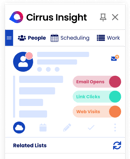
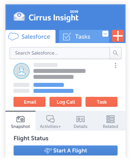
If your team leans heavily on Salesforce and wants the full workflow inside Outlook, this is where Cirrus Insight fits. It brings Salesforce records into the inbox, syncs emails, events, contacts, and attachments, and adds scheduling, templates, and buyer engagement insights so reps handle more of the sales process without leaving email.
The practical steps are the same whichever route you take: pick the method that matches your needs, follow a careful rollout, apply the best practices above, and keep an eye on how Salesforce's native tools evolve. Get those right, and your inbox and CRM will finally work as one system instead of two.
For more detail, explore our outlook best practices guide.
FAQs
What are the benefits of integrating Salesforce with Outlook?
You view and update data from your inbox, stop switching between platforms, and improve data accuracy through automatic syncing. Emails, calendar events, and tasks get logged without manual entry, which frees reps to spend more time selling.
How do I set up the Salesforce and Outlook integration?
For the native tools, install the Salesforce add-in in Outlook, turn on the Outlook Integration and Einstein Activity Capture in Salesforce Setup, and confirm user permissions. For a third-party tool like Cirrus Insight, setup is a guided install, a Salesforce sign-in, and custom sync configuration.
What are the system requirements?
Generally a supported version of Outlook (Microsoft 365 or Outlook 2016 and later), a supported browser such as Chrome or Edge, a Salesforce edition with API access, and admin rights to configure both systems. Requirements vary slightly by method.
Is Salesforce for Outlook still available?
It is retiring. Full product retirement is scheduled for December 2027, extended from the original June 2024 date, and the side-panel action menu stopped working back in Summer '21. For new setups, use the Outlook Integration plus Einstein Activity Capture instead.
Is there a cost for using Einstein Activity Capture?
Einstein Activity Capture is included with Sales Cloud and Service Cloud licenses, though it has limits on data retention and customization. Extended storage and advanced features can require higher editions or add-ons. Third-party tools like Cirrus Insight are worth comparing if those limits get in your way. In some cases, the cost of EAC over time can exceed the cost of third party tools like Cirrus Insight.
Can I sync attachments and custom objects from Outlook?
Not fully with the native tools, where both are limited. To capture attachments and custom objects reliably, use a third-party solution such as Cirrus Insight.
What is the difference between Einstein Activity Capture and the Outlook Integration?
The Outlook Integration is the side panel that puts Salesforce inside Outlook. Einstein Activity Capture is the background engine that auto-syncs emails and events.
What is the best Salesforce Outlook integration tool?
For basic sync, Salesforce's native tools are enough. For advanced needs like buyer signals, full record editing in Outlook, and attachment syncing, Cirrus Insight is the stronger choice.


.png?width=18&height=18&name=Vector%20(5).png)