.png?width=18&height=18&name=Vector%20(5).png)

How do I set up a Salesforce Service Account?
Overview
A Salesforce Service Account is used to authorize Cirrus Insight features that require secure, continuous access to Salesforce data and permissions.
This account enables Cirrus Insight Admins to:
-
Import Salesforce user credentials to easily create Cirrus Insight users.
-
Manage Sync and Calendar Scheduling services at the organization level.
-
Support advanced features, such as Meeting AI, when Salesforce is used as a data source.
Requirements
To ensure both security and functionality, Cirrus Insight now follows the Principle of Least Privilege when configuring Salesforce Service Accounts.
Rather than using a full System Administrator profile, we now recommend creating a dedicated Integration User leveraging Salesforce’s free Integration User License and the “Minimum Access – API Only Integration” profile type.
This configuration grants only the permissions required for Cirrus Insight to function, no more, helping to maintain compliance with Salesforce’s security best practices.
Steps 1: Create the Integration User
-
In Salesforce, create a new user using the Integration User License.
-
Assign the “Minimum Access – API Only Integration” profile to this user.
-
Assign the Permission Set License (PSL) → Salesforce API Integration.
-
Without this PSL, any added permission sets will not apply correctly.
-
Step 2: Assign a Permission Set
Create and assign a Permission Set to this integration user that includes the following permissions:
System Permissions
-
Access Activities
-
View All Users
-
Edit Tasks
-
Edit Events
Object Permissions
Grant Read/Write access only to the objects Cirrus Insight needs to interact with:
-
Accounts
-
Contacts
-
Leads
-
Opportunities
-
Contracts
-
Cases
-
Notes
-
Personal Accounts
💡 If your organization uses Meeting AI with Salesforce as the data source, these same object permissions allow Meeting AI to securely reference relevant CRM data.
Step 3: Configure Role Hierarchy
Ensure the integration user’s Salesforce role sits above the roles of all end users it will act on behalf of.
This setup gives the integration user sufficient record-level access to create and update activities (Tasks, Events) without needing “Modify All Data.”
Step 4: Connect the Service Account in Cirrus Insight
-
Go to Admin Dashboard → Settings → Advanced → Authentication → Service Accounts.
-
Click + Add next to Salesforce Service Account.
-
Sign in with the Salesforce credentials for the Integration User you just created.
-
Approve all requested permissions when prompted.
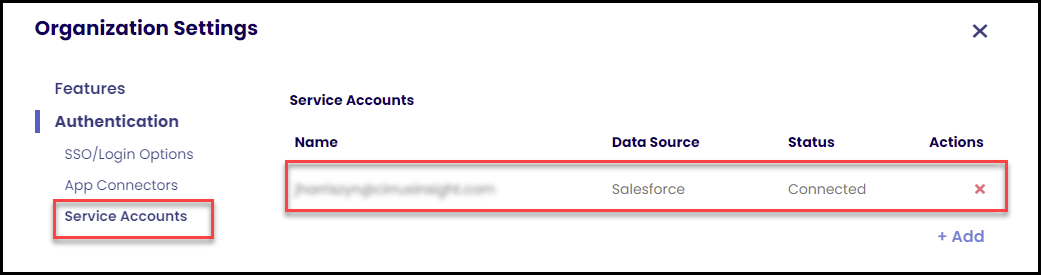
Once connected, the Salesforce Service Account serves as the secure data bridge between Cirrus Insight and Salesforce.
After connecting the account:
-
Admins can enable and configure admin-managed sync services (Email, Calendar, Task Sync) for their organization as needed.
-
Admins can use the Salesforce Import feature to selectively onboard or register user profiles into Cirrus Insight.
-
If applicable, Meeting AI can securely reference CRM data from Salesforce when configured as the customer’s data source.
This setup ensures a secure, permission-scoped connection that provides only the specific level of access Cirrus Insight needs to perform the operations required for the services you choose to enable—no more, no less.
Summary Table
|
Old Setup |
New Setup (Standard) |
|---|---|
|
SysAdmin profile with “View All / Modify All Data” |
Minimum Access – API Only Integration profile |
|
Broad, unrestricted data access |
Scoped, object-specific permissions |
|
Higher security risk |
Aligned with Salesforce least-privilege model |
Related Topics
Admins | How do I create new users?
Transitioning to a Service Account for Email & Calendar Sync
Relevant Articles