.png?width=18&height=18&name=Vector%20(5).png)

Cleaner name capture for downstream CRM creation, full keyboard accessibility on attribute picklists, and 15 new Salesforce attribution fields you can wire up in minutes.
If you build pipeline through inbound demos, partner referrals, or a busy outbound team, your booking page is the front door. This month we shipped three changes that quietly make that door a lot better — for your bookers, for your accessibility audit, and for your Salesforce admin.
1. First Name & Last Name on the booking page
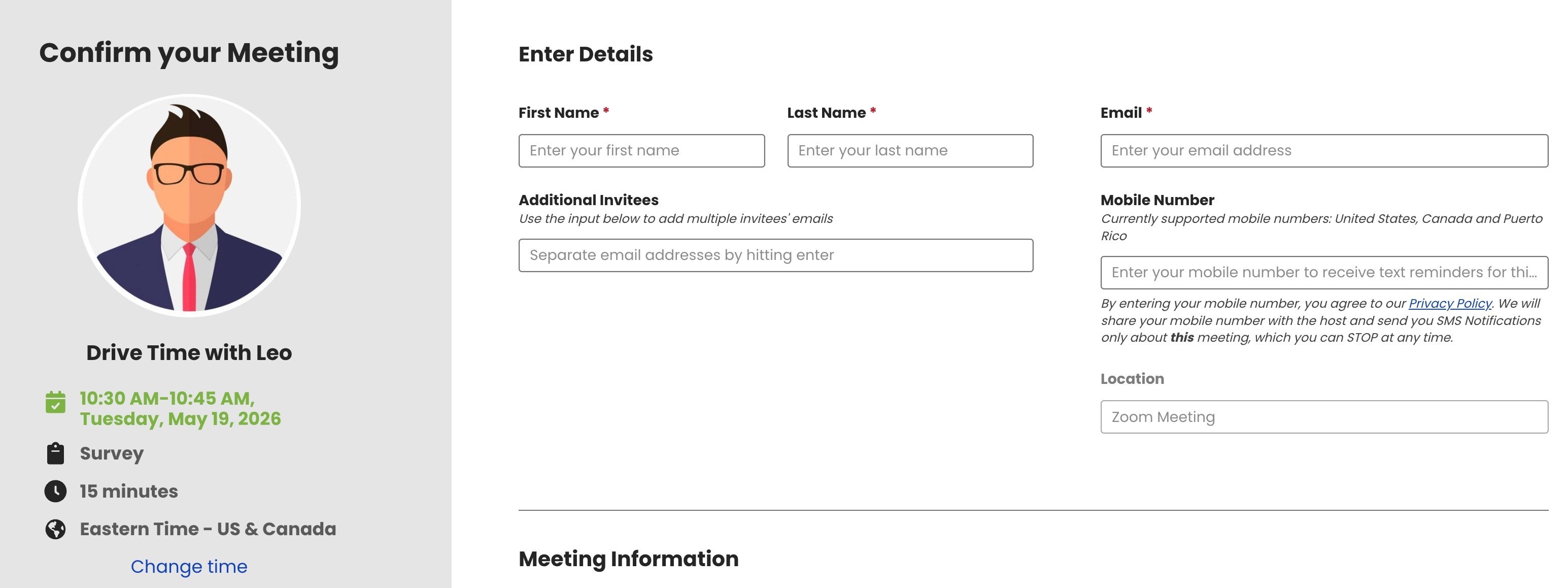
We've split the booking page's single "Name" field into discrete First Name and Last Name fields, rolled out across Calendar Views, Team Calendars, Book Meeting, and Smart Scheduler. The change originated in our Equitable Smart Scheduling enhancement project and is now live for everyone.
Why we changed it
The booking webhook still emits a single primaryInviteeName string today — but as we move toward automated contact and lead creation from bookings (both natively inside Cirrus and via webhook listeners in customer Salesforce orgs), a combined name string is a poor primitive.
- Salesforce contacts and leads use distinct
FirstName/LastNamefields, and parsing those out of a combined string at write time is unreliable. - Free-form name parsing breaks on multi-word last names, hyphenated names, suffixes, and locale ordering (e.g., East Asian family-name-first conventions).
- Carrying a single string blocks our own contact-creation roadmap inside Cirrus.
For developers: the existingprimaryInviteeNamefield on the booking webhook is unchanged. DiscreteprimaryInviteeFirstNameandprimaryInviteeLastNamefields are emitted alongside it. Existing integrations continue to work; switch when you're ready.
2. Attribute picklists now match native keyboard behavior
Attribute fields on Smart Scheduler booking links — used for routing and qualification — were previously keyboard-inaccessible. Bookers had to mouse-scroll a long list to find the right value. The updated picklist behaves like a native HTML <select>, with type-ahead, arrow-key navigation, and the full set of keyboard shortcuts you'd expect.
Before
- User clicks the picklist to open it.
- Pressing letter keys does nothing.
- User must scroll the list and click the desired option.
- Tab / Shift + Tab moves between fields but does not interact with the open list.
After
- Picklist matches native
<select>keyboard behavior on every supported browser. - Multi-character type-ahead buffer with a ~500 ms reset.
- Mouse interaction is unchanged — nothing existing users have to relearn.
- Works with screen reader focus and visible focus rings.
Keyboard reference
| A | B | C | Type-ahead. Press a character to jump to the first option starting with that letter. Repeated presses cycle matches. Multi-character buffer (e.g., Ne → "New York") with a ~500 ms reset. |
| ↑↓ | Move highlight between options when the list is open. |
| Enter | Space | Selects the highlighted option and closes the list. |
| Esc | Closes the list without changing the selection. |
| Tab | Closes the list and moves focus to the next field. |
| Home | End | Jump to the first or last option in the list. |
A small change with a big footprint — every Smart Scheduler attribute picklist on every booking page is now fully operable by keyboard alone.
3. Salesforce attribution fields on the Event record
When a meeting is booked through Smart Scheduler, Personal Scheduling, or Team Scheduling, Cirrus can now write meeting context — UTM parameters, scheduler identity, and invitee details — directly to the Salesforce Event record when it's created. This guide is for your Salesforce Admin to provision the optional custom fields. All fields are optional — create only the ones that fit your reporting and automation needs. Fields you do not create are silently skipped; existing behavior is unchanged.
Why this matters for your Salesforce Admin
Until now, a meeting booked through Cirrus landed in Salesforce as an Event with no breadcrumb back to the campaign, schedule, or rep that produced it. With these fields populated on the Event record, your Admin and RevOps team can finally connect scheduling activity to pipeline outcomes using the reporting tools they already use every day.
Want to know which Smart Schedule was responsible for closing your biggest deals last month? Which region or sales rep took the most meetings? Which paid campaign actually produced booked time on calendars? With the new attribution fields, that data lands in Salesforce today — no spreadsheet stitching required.
-
Which Smart Schedule closed our biggest deals?
Roll up Closed-Won opportunities by the Smart Schedule that produced the first meeting. Compare an inbound demo schedule to a partner-sourced one, side by side.
Powered byCirrusInsight_CalendarPath__c -
Which region or rep took the most meetings?
Group Events by Owner, role, or territory. See volume, conversion rate, and pipeline contribution per rep, manager, or geography — directly from a standard Salesforce report.
Powered byEvent.OwnerIdandCirrusInsight_MeetingName__c -
Which campaign actually produced booked meetings?
Slice meeting volume by
utm_source,utm_campaign, orutm_medium. Tie paid-media spend to a hard pipeline-stage metric — not just to clicks or form fills.Powered by the six UTM fields
How matching works
Cirrus matches custom fields by API Name. Pick any Field Label you like — the API Name is what Cirrus looks for. If your org already uses a different API name for one of these concepts (e.g., a pre-existing Lead_Source_Campaign__c), contact Cirrus Support and we'll map your existing field on the back end — no field changes required on your side.
Prerequisites
For attribution fields to be written, the following must be in place:
- Active Salesforce connection on every Assignee. Every host in the Smart Schedule's assignee pool needs a connected Salesforce account in good standing — anyone can be matched. If the matched host's connection is missing or expired, no Event is created and no attribution is written.
- "Save Meetings to Salesforce" enabled. Toggled on the Smart Schedule itself, typically by your Cirrus Admin. If it's off, no Event is created and these fields are not populated. Confirm it's enabled on every schedule you want attribution for.
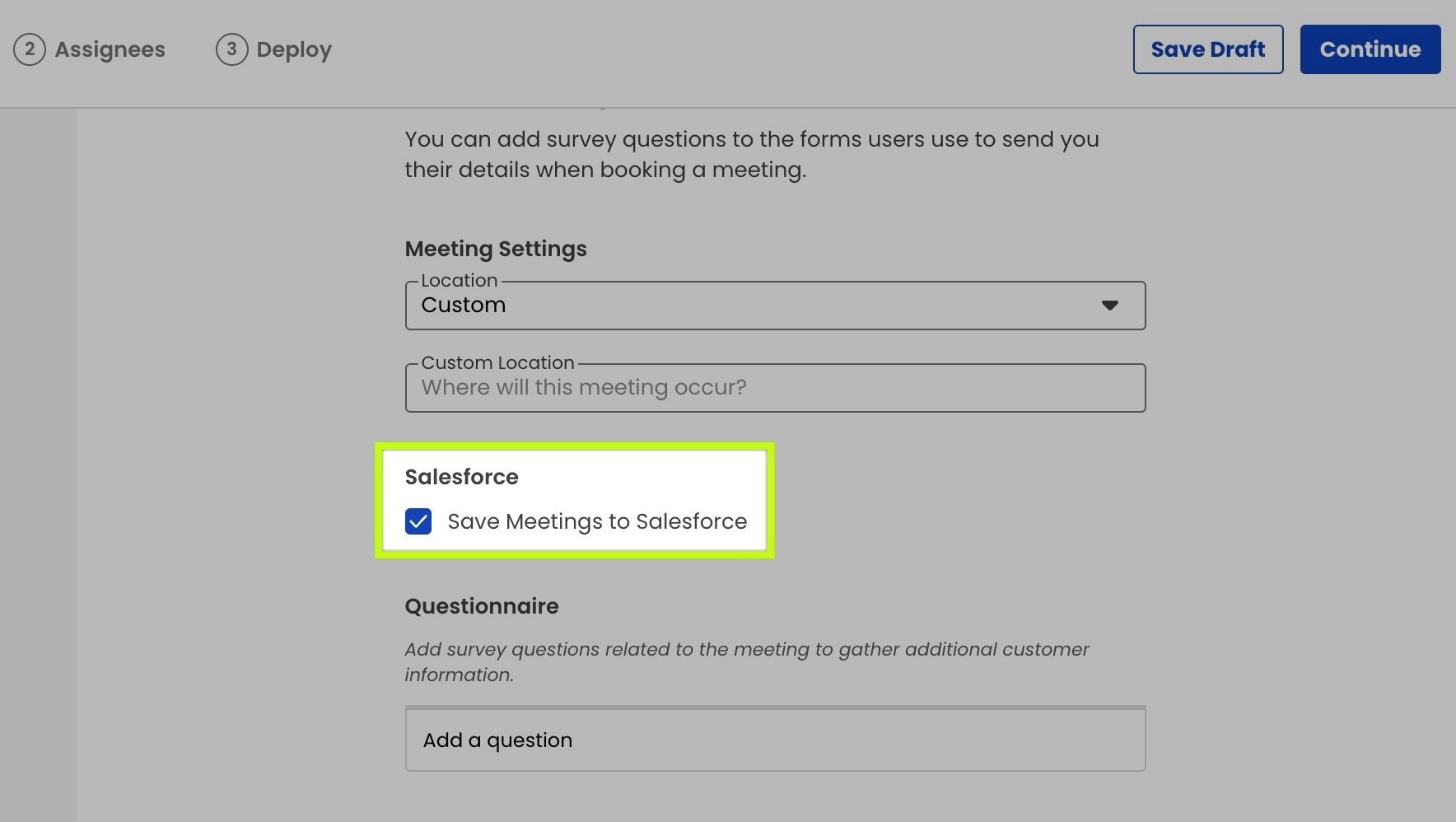
The Save Meetings to Salesforce toggle lives in the Smart Schedule's Salesforce section, between Meeting Settings and the Questionnaire.
Setup steps
- Navigate to the Event object. In Salesforce, go to Setup → Object Manager → Event → Fields & Relationships.
- Create the fields you want. Click New and create each field from the reference table below. Use the suggested API name exactly as shown — Cirrus auto-detects these. Use the listed type and length.
- Add to your Event page layouts. If you want users to see the fields, add them to your Event page layouts. Required only if users need to view them — Cirrus writes them either way.
- Grant field-level security. Give your Salesforce integration user Edit access on each field via Field-Level Security.
- You're done — attribution flows automatically. No toggle, no CSM notification, no support ticket. As soon as the fields exist with the API names below, attribution begins flowing on the next booking. Only reach out to Cirrus Support if you need a different API name than the one listed in the field reference (e.g., a namespace prefix or a pre-existing field you want us to map to).
Field reference
15 optional fields, grouped by what they capture. Create only the ones you'll use.
| Field label (suggested) | API name (must match) | Type | What it captures |
|---|---|---|---|
| Meeting identity | |||
| CirrusInsight Meeting Id | CirrusInsight_MeetingId__c |
Text(50) | Unique Cirrus meeting GUID |
| CirrusInsight Email Meeting Id | CirrusInsight_EmailMeetingId__c |
Text(255) | Calendar event ID |
| CirrusInsight Zoom Meeting Id | CirrusInsight_ZoomMeetingId__c |
Text(50) | Zoom meeting ID (when applicable) |
| CirrusInsight Meeting Name | CirrusInsight_MeetingName__c |
Text(255) | Name of the booked meeting type |
| Scheduler identity | |||
| CirrusInsight Calendar Path | CirrusInsight_CalendarPath__c |
Text(255) | Scheduler URL path slug |
| CirrusInsight Calendar URL | CirrusInsight_CalendarUrl__c |
URL(255) | Full booking URL |
| CirrusInsight Organization Path | CirrusInsight_OrganizationPath__c |
Text(100) | Your org's path slug |
| Invitee | |||
| CirrusInsight Primary Invitee | CirrusInsight_PrimaryInvitee__c |
Booker's email | |
| CirrusInsight Primary Invitee Name | CirrusInsight_PrimaryInviteeName__c |
Text(255) | Booker's name |
| UTM attribution | |||
| CirrusInsight UTM Id | CirrusInsight_UtmId__c |
Text(255) | utm_id |
| CirrusInsight UTM Source | CirrusInsight_UtmSource__c |
Text(255) | utm_source |
| CirrusInsight UTM Medium | CirrusInsight_UtmMedium__c |
Text(255) | utm_medium |
| CirrusInsight UTM Campaign | CirrusInsight_UtmCampaign__c |
Text(255) | utm_campaign |
| CirrusInsight UTM Term | CirrusInsight_UtmTerm__c |
Text(255) | utm_term |
| CirrusInsight UTM Content | CirrusInsight_UtmContent__c |
Text(255) | utm_content |
Tips
Need a hand?
If you'd like help wiring this up, reach out to your Customer Success Manager or email support@cirrusinsight.com. We're happy to walk through the Salesforce setup with your Admin and confirm the fields are populating as expected.