.png?width=18&height=18&name=Vector%20(5).png)

How do I enable Automatic Attachment Sync for my org?
Automatic Attachment Sync is a beta participation feature as of July 2026. It is not enabled by default. Contact Cirrus Insight Support to enable it for your org, or to ask additional questions about enabling the feature.
Automatic Attachment Sync requires Email Sync to be enabled and running for your users. If your org is not yet using Email Sync, our team will help you set that up first.
Overview
When Email Sync processes a message that has attachments, Automatic Attachment Sync uploads those files to Salesforce and links them to the same record as the email — no manual filing or extra clicks from your reps.
- With Salesforce Enhanced Email ON, attachments are added to the EmailMessage record.
- With Enhanced Email OFF, attachments are added to the Task record.
- Both modes are supported. In either case, the files land on the same Contact, Lead, or Opportunity the email synced to, and appear in the record's Attachments related list.
Attachment capture runs in a dedicated service, so your existing Email Sync timing and reliability are unaffected. Anyone who can see the parent record can see its attachments — no additional sharing rules are required.
Requirements
- Email Sync is enabled and running for the users who will participate. Automatic Attachment Sync rides on your existing Email Sync stream.
- A healthy Salesforce connection — each participating user can authenticate to Salesforce and write to the records they normally sync against.
- Cirrus Insight Admin access — required to confirm the org-level setting and manage per-user enablement in the Admin Dashboard.
- Beta access enabled by Cirrus Insight — contact Support to have the feature made available for your org.
Steps
Step 1: Confirm the org-level setting is on
This setting becomes visible after Cirrus Insight Support enables beta access for your org.
- Go to home.cirrusinsight.com > Admin > Settings > Sync > Org Settings > Email Sync > Advanced
Direct link: home.cirrusinsight.com/#/dashboard/admin/sync/settings/email/advanced - In the Advanced section, confirm Automatic Attachment Sync is toggled to Enabled.
- Click Save.
When enabled at the org level, Automatic Attachment Sync is turned on for all users in the org by default. To opt individual users in or out, follow Step 2.
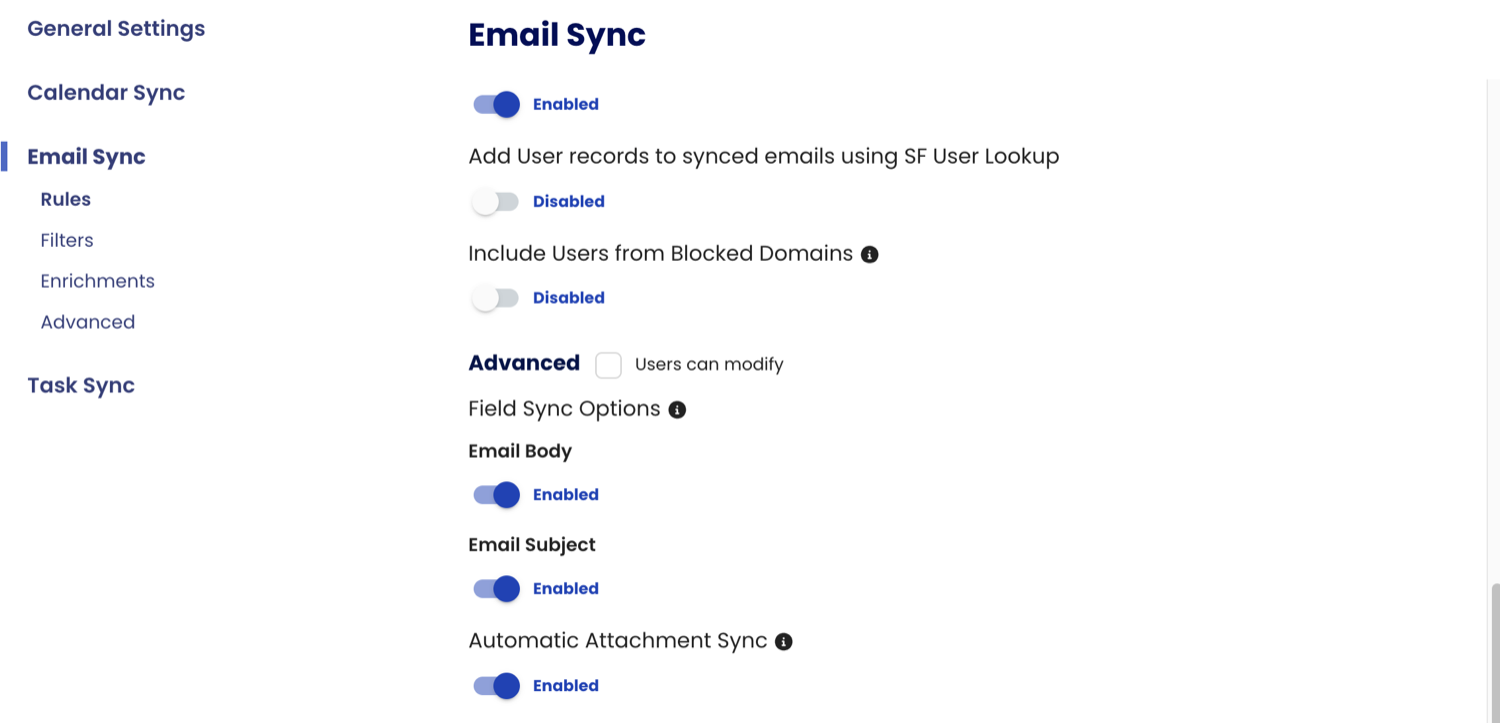
Email Sync > Advanced — Automatic Attachment Sync toggled to Enabled.
Step 2: Opt users in or out (Bulk Actions)
- Go to home.cirrusinsight.com > Admin > Settings > Administration > Users
Direct link: home.cirrusinsight.com/#/dashboard/admin/users/ - Use the checkboxes to the left of user names to select one or more users.
- In the Bulk Actions panel, toggle Email Attachment Automatic Sync to Enabled (or Disabled to opt users out).
- Click Save. Multiple users can be updated at once from the same screen.
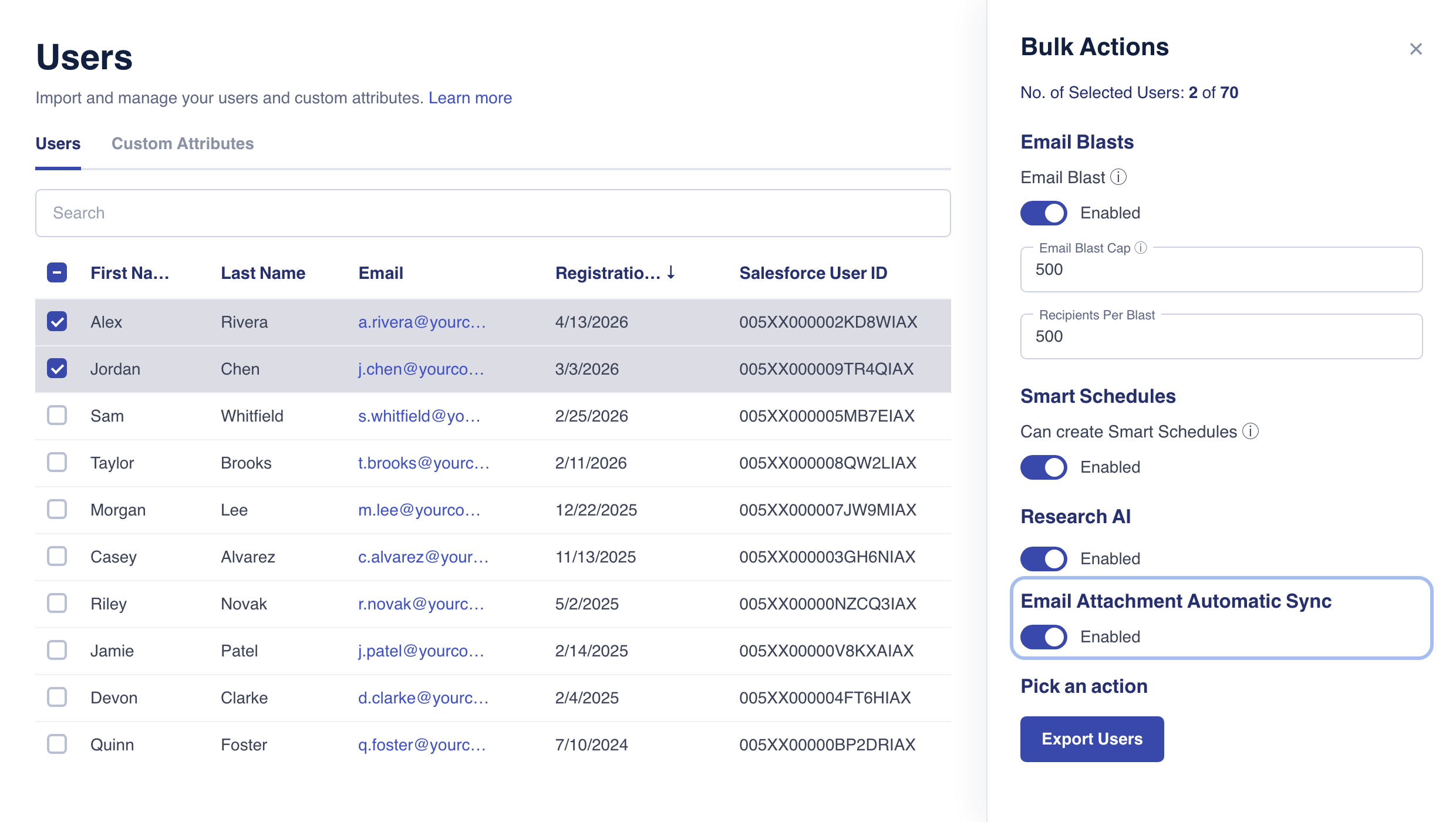
Users > Bulk Actions — Email Attachment Automatic Sync toggled to Enabled for the selected users (example data shown).
Once enabled, attachments begin syncing with the next emails Email Sync processes — there is nothing for your reps to install or configure.
Supported file types and size limit
Automatic Attachment Sync uploads a curated set of common business file types:
| Supported | Not Supported |
|---|---|
| CSV | |
| Word (.doc, .docx) | PowerPoint (.ppt, .pptx) |
| Excel (.xls, .xlsx) | ZIP and other archives |
| Images (JPEG, PNG, GIF, WebP, BMP, TIFF) | Attached emails (.eml, .msg) |
| Plain text (.txt) |
- Maximum file size: 25 MB per attachment.
- Files outside the supported set (or over the size limit) are skipped safely — the email itself still syncs normally, and skips are tracked so our team can review them with you.
- File types are detected by the content type reported by the sender's mail client, not by the file extension. Borderline formats can therefore vary by sender — for example, some mail clients label CSV files as Excel, and those copies will sync.
Known limitations
- Syncing is one-way and permanent. A synced attachment can't be un-synced. If a file lands in Salesforce that you don't want there, delete it manually from the record.
- Inline images embedded in email bodies may not render in Salesforce.
- Email only — calendar and meeting attachments are not yet in scope.
- No deduplication or versioning — each synced file is stored as sent.
Questions or ready to join the beta? Contact Cirrus Insight Support to enable Automatic Attachment Sync for your org or to ask any questions about beta participation.
Relevant Articles