.png?width=18&height=18&name=Vector%20(5).png)


Improved WhatID Visibility in Cirrus Insight Sidebar
| Available Now! Contact us to participate in the Beta |
We’ve introduced an update to the Cirrus Insight Sidebar that gives you instant visibility into where your emails are filed in Salesforce—along with important context on how Salesforce manages those relationships.
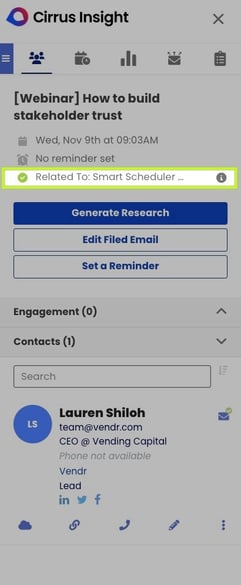
Viewing “Related To” (WhatID) in the Sidebar
When you file an email using Cirrus Insight, a green checkmark indicates the email was successfully logged to Salesforce.
With this enhancement, you will now see the Related To (WhatID) record name directly in the People Tab, within the Email Summary section.
|
The Related To value appears alongside other key email details, including:
This gives you clear, immediate visibility into where the email is filed—without needing to open the activity or contact record. You can also:
Schedule time with our product team to learn more about this. |
 |
Additional details:
- Supports all standard and custom Salesforce objects
- Record names are displayed without icons to support all object types
- Long names are truncated with full visibility on hover
- If no record is selected, you may see “No related record selected”
- If you don’t have access to the record, it will display as restricted
Note:
If an email is not associated with a Related To (WhatID) record, no Related To confirmation will appear in the Email Summary section.
Understanding Salesforce “Related To” (WhatID) Limitations
The Related To field is controlled by Salesforce, and certain limitations affect how relationships appear in Cirrus Insight.
One WhatID Per Email (Enhanced Email)
If your org uses Enhanced Email (EmailMessage):
- Each email can be linked to only one Related To record
Task-Based Activity Logging
If your org logs emails as Tasks:
- Salesforce may allow multiple related records
- Cirrus Insight will display only the primary Related To value
Additional Platform Constraints
- You cannot associate one email with multiple WhatID records (e.g., Opportunity and Case)
- WhatID does not support Leads or Users
- Shared Activities allow multiple Contacts (WhoID), but not multiple Related To records
These are Salesforce platform limitations—not restrictions imposed by Cirrus Insight.
How to File an Email and Select a Related Record
To ensure your email is linked correctly:
- Open an email in your inbox
- Go to the People Tab in the Cirrus Insight Sidebar
- Click the File Email (envelope) icon next to the contact
- Confirm or update the Related To field
- (Optional) Choose to include attachments
- Click File Email in Salesforce
After filing:
- A confirmation message will appear
- The email will show a green checkmark
- The Related To record will be visible in the Email Summary section
This update is designed to save time, reduce clicks, and give you confidence that your emails are filed to the correct Salesforce records.
Relevant Articles