.png?width=18&height=18&name=Vector%20(5).png)
Meet the New Scheduling Home Page
One launchpad for every scheduling tool — your recent links, one-click creation, and quick management, all from a single dashboard.
If you spend your day sharing booking links, spinning up team schedules, or checking a colleague's availability, Scheduling is where a lot of your work starts. This January we redesigned that starting point. Clicking Scheduling now opens to a clean Home page that puts every scheduling tool on your plan in one place — so you spend less time hunting through sub-menus and more time getting to a shareable link.
Where to find it: Cirrus Insight dashboard → Scheduling in the left navigation.
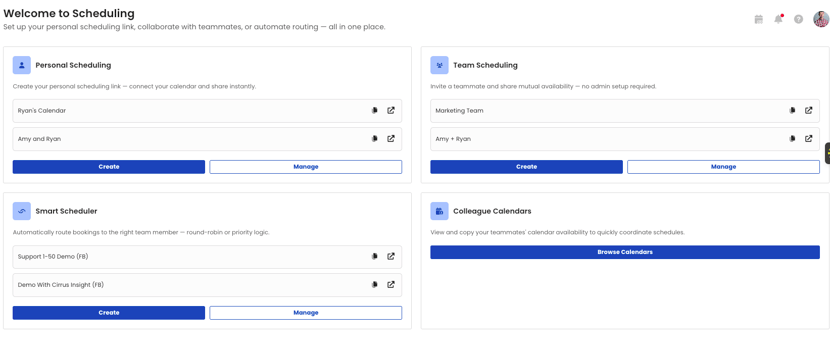
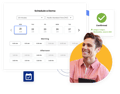
The new Scheduling Home page, showing the four feature cards with recent items and one-click Create and Manage actions.
What's new
Scheduling no longer drops you into a sub-menu you have to learn. Instead, you land on an at-a-glance launchpad built from four cards — one for each scheduling feature available on your plan. Each card shows your most recent items (up to three) and gives you one-click Create and Manage actions, so the thing you reach for most is always one tap away.
The four cards
Here's what each card does and what it surfaces.
| Card | What it does |
|---|---|
| Personal Scheduling | Create and share your individual scheduling links. The card surfaces your default link plus your most recently used calendar views, so they're always one click away. |
| Team Scheduling | Spin up a new team scheduling link, name the team, add members, and copy the shareable URL. Manage existing team links directly from the card. |
| Smart Scheduler | Launch the Smart Scheduler creation flow to build round-robin and intelligent routing links. View, edit, or disable any existing Smart Schedule from the Smart Scheduler tab. |
| Colleague Calendars | Browse your colleagues' availability, grab a shareable link to any teammate's calendar, and use one-click booking on their behalf. |
Tip: The cards you see reflect the scheduling features included in your plan. If a tool you expect isn't showing, check your plan or reach out to your Cirrus Admin.
How it behaves
A couple of details worth knowing about the new default experience:
- It's now your default landing page. Clicking Scheduling in the left navigation takes you to Home first. Your post-login redirect to Meeting AI is unchanged — nothing about your sign-in flow moves.
- Recents at a glance. The Personal Scheduling, Team Scheduling, and Smart Scheduler cards each surface up to your three most recently created items, so you can jump back into recent work without leaving the page.
Each card surfaces your three most recent items, with Create and Manage actions right alongside them.
Why we built it
The previous navigation made you hunt for the right scheduling tool — especially if you were new and not yet sure of the difference between calendar views, team links, and Smart Schedules. The new Home page lowers the barrier to first use, shortens the path to a shareable link, and keeps your most recent work surfaced where you can find it.
Need a hand?
If you have questions about the new Scheduling Home page or want help getting set up, reach out to your Customer Success Manager or email support@cirrusinsight.com. We're happy to walk you through it.